

Please note that the given URLs will no longer be protected by Ogo, and the given IPs will no longer be analyzed by Ogo on this domain.
- Blocked IPs : This feature allows you to create a list of IPs/networks that will be systematically blocked without analysis. These blocks take priority over other exceptions and access control rules.
- Whitelisted IPs: this feature allows you to create a white list of IPs that will no longer be analyzed and for which no blocking will be done by OGO.
- Passthrough URLs : this feature allows you to create a list of URLs that will no longer be analyzed and for which no blocking will be done by OGO.
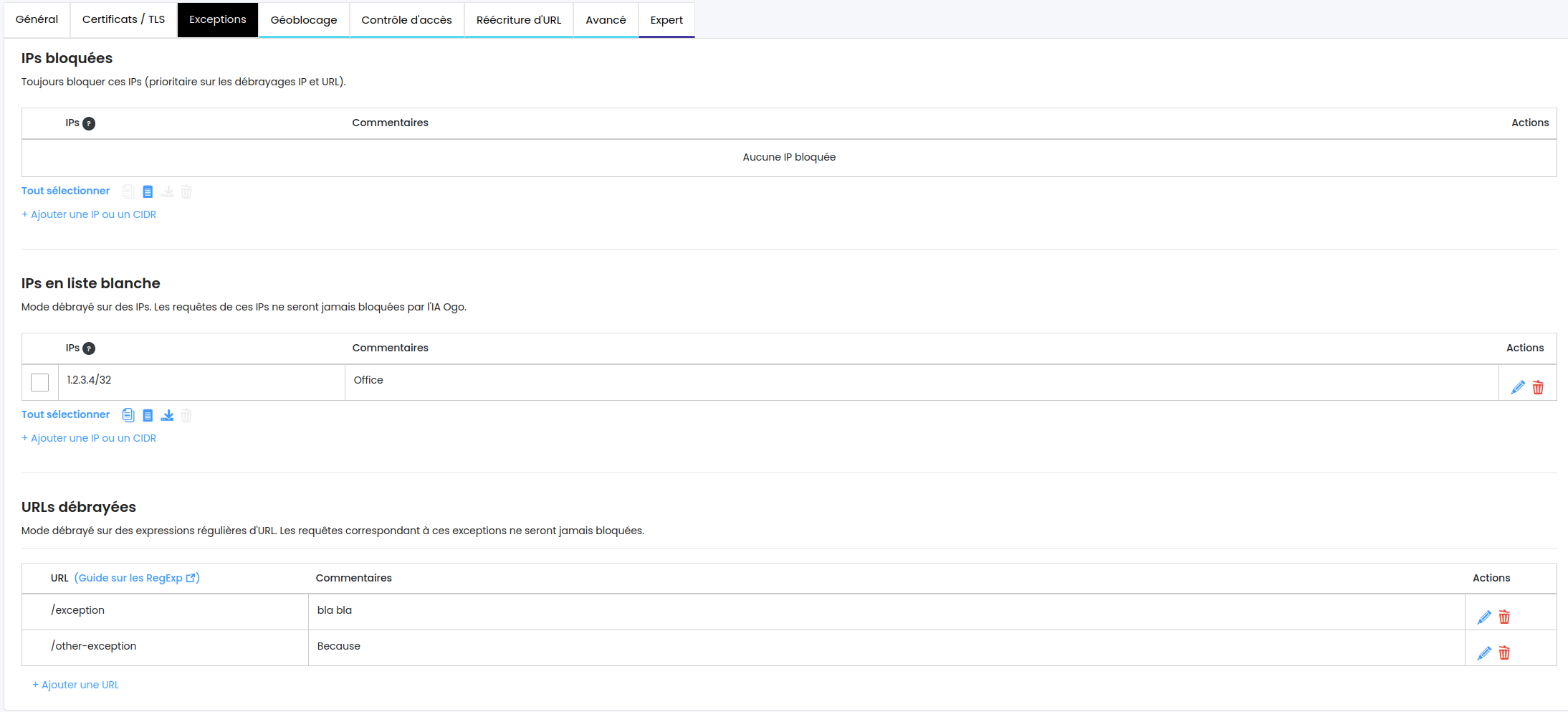
For blocked or whitelisted IP addresses, use the action buttons located below the table:
Select all / Deselect all: Selects all rows in the table. Once every row is selected, the link switches to Deselect all.
Copy: Copies the selected rows to the clipboard. If no row is selected, the entire table is copied. Data is copied as two columns (IP address and comment), so pasting into Excel or Google Sheets fills two separate columns.
Paste: Pastes one or more IP addresses from the clipboard. Data copied from Excel, Google Sheets or a CSV file is recognized and inserted directly into the table. Each line must contain an IP address, optionally followed by a comment, separated by a tab, comma or semicolon. Entries already present in the table are ignored. If any line contains an invalid IP address or CIDR, nothing is imported and the invalid values are listed in the error message.
Export: Exports the selected rows in CSV format. If no row is selected, the entire table is exported.
Delete: Deletes the selected rows after confirmation.
Copy, Export and Delete are unavailable while a row is being edited or when the table is empty.
To add an entry, click + Add an IP or CIDR below the table. You can also edit an individual entry by clicking the pencil icon at the end of the corresponding row. While editing, press Enter to confirm or Escape to cancel.
Example
IP Address | Comment |
|---|---|
192.168.1.10 | Administration server |
203.0.113.25 | Temporarily blocked IP |
Column descriptions:
IP Address: Specifies the IP address or CIDR range to block or whitelist. A single IP address is automatically stored in CIDR notation (for example,
192.168.1.10becomes192.168.1.10/32). Duplicates are rejected.Comment: Provides additional information to help identify the entry or explain the reason for the rule. Optional, limited to 255 characters.