

Two-factor authentication (also referred to as Multi-factor authentication, or MFA) strengthens your account security by requiring a second code in addition to your login password. This code can be obtained in two ways:
By Email: you receive a unique code with each login
Via an authenticator app: the app generates a TOTP (Time-based One Time Password)
Do not share the two-factor authentication code with anyone!
Configuration
Go to the My account > My profile tab, then click Modify in the Authentication section.
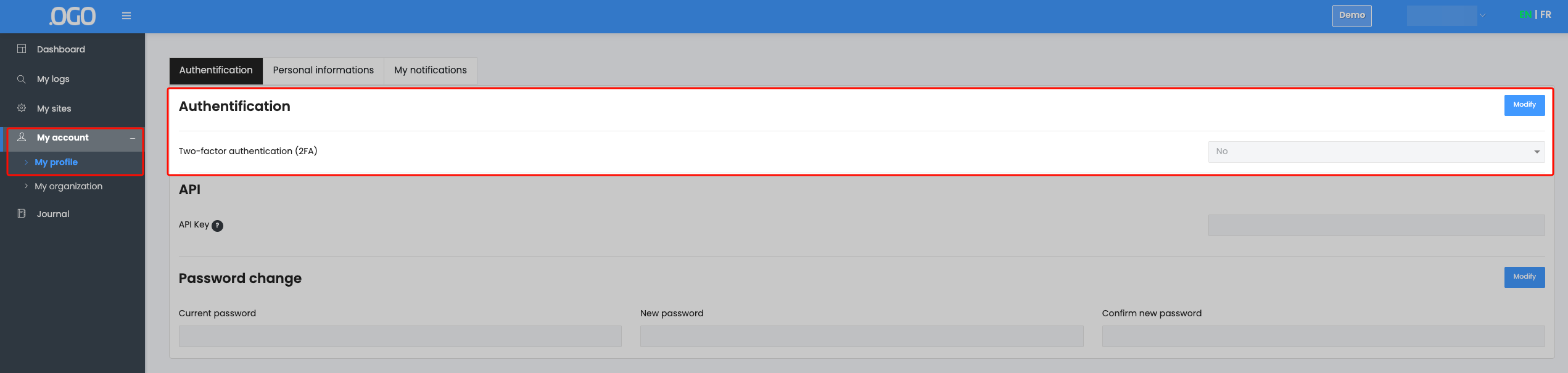
Then select the 2FA method of your choice (Email or Authenticator app).
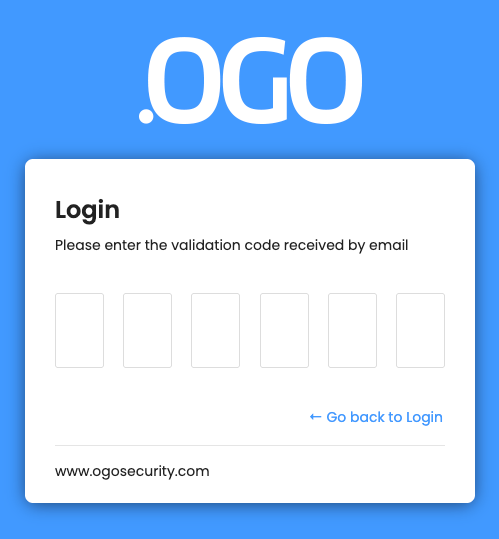
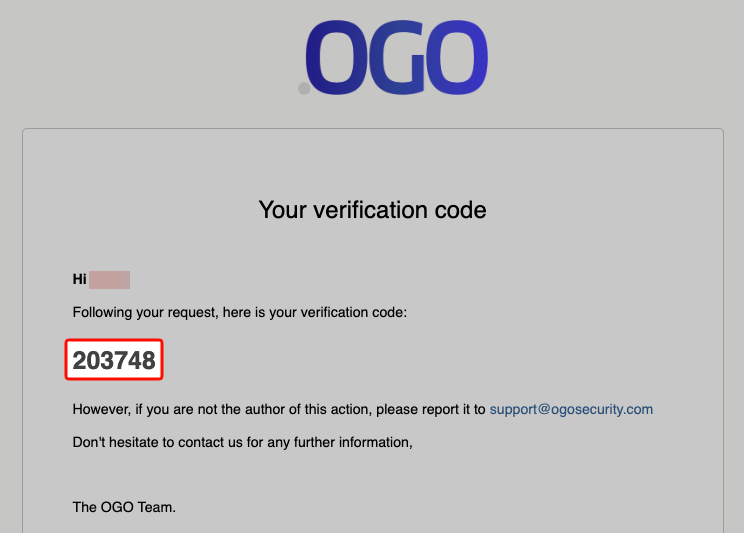
Once you have selected Email as your 2FA method, you will receive an email with a unique code each time you log in:
Authenticator app
To set up an authenticator app, follow the instructions and scan the QR code from your app. The app automatically decodes the parameters to apply and then generates a rotating code.
You will then need to enter the code generated by your app to confirm that it is correctly configured.
Manual configuration
If you want to use an app on your computer, or are unable to scan the QR code, you can manually configure your app by entering the displayed Key.
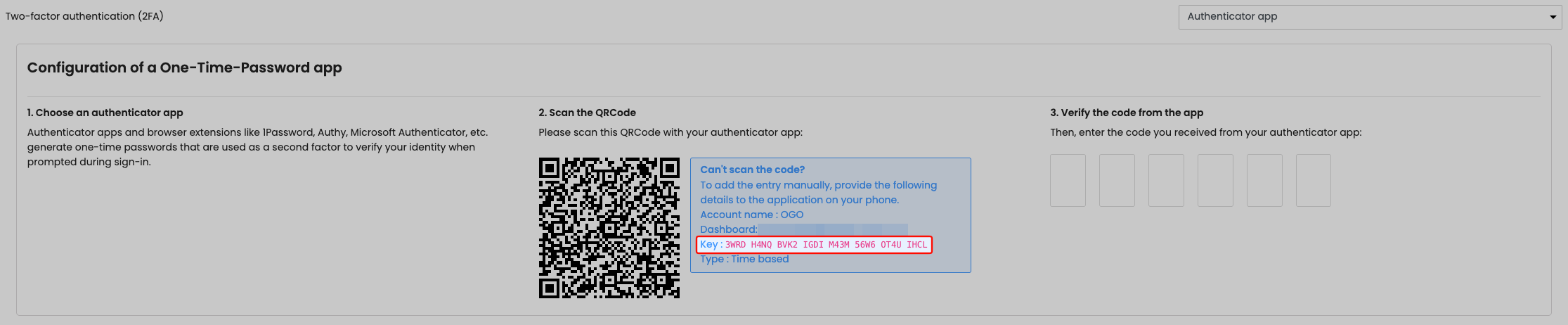
The TOTP algorithm settings are as follows:
Type: TOTP / Time-based
Algorithm / hash function: SHA-1
Time interval: 30 seconds
Code length: 6 digits
Note that some apps may require you to remove the spaces from the Key, otherwise they may generate an invalid code.
Do not share this Key with anyone!